
Getting started
- Allow location. When the phone asks, tap Allow. It is for your blue dot and the turn calls, and it stays on your phone.
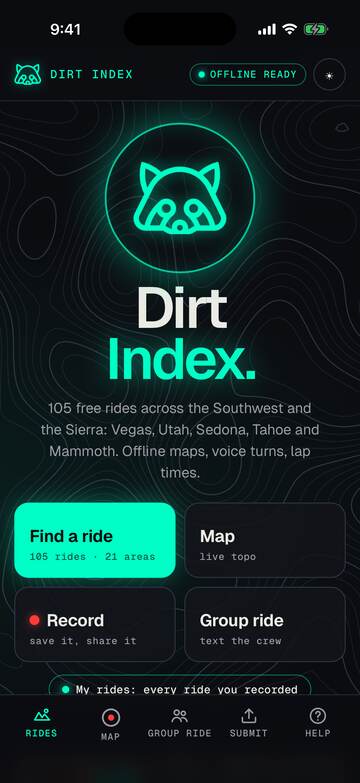
- Find a ride. Search or filter on the Rides tab, then tap one.
- Check conditions. The colored line on the ride page says if today is good.
- Tap Ride mode at the trailhead. A voice calls each turn before you reach it.
- Tap Exit when you finish. Tap how the trail was. Your ride is saved in My rides.
Tell someone where you are going: Text a buddy on any ride sends where you parked and when to worry.
Ride with no signal
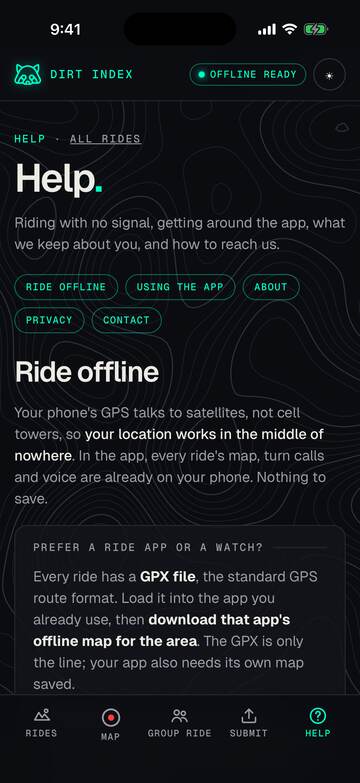
Your phone's GPS talks to satellites, not cell towers, so your location works in the middle of nowhere. The map is the part you have to save ahead of time. Here's how, in about two minutes, on wifi, before you leave.
The 2-minute version
- On wifi, open your ride on Dirt Index.
- Wait for the top-right badge to turn green and say offline ready. While it says saving 40%, keep the page open.
- Tap "Locate me" once at home and allow location. That way the phone won't need to ask at the trailhead.
- Tap "Download GPX" too, as a backup copy for your ride app or watch.
- Test it: turn on airplane mode, open the ride again, and make sure the map shows. Then turn airplane mode back off.
iPhone
- Add it to your Home Screen. In Safari, tap Share ↑, then Add to Home Screen. You get a Dirt Index icon.
- Open Dirt Index from that icon, on wifi, and open your ride there. iPhone keeps Home Screen apps' saved data separate from Safari, so save the ride inside the icon version, the one you'll use on the trail.
- Wait for the green "offline ready" badge.
- Turn on location: Settings → Privacy & Security → Location Services → on. When Dirt Index asks to use your location, tap Allow.
- Open it within a few days of your ride. iPhone can clear saved website data you haven't used in about a week. A quick open on wifi refreshes it.
Riding in Safari instead of the icon? That works too. Just save the ride in Safari, and under Location Services, set Safari Websites to "While Using."
Android
- Install it. In Chrome, tap the ⋮ menu, then Add to Home screen or Install app.
- Open Dirt Index from the new icon, on wifi, and open your ride.
- Wait for the green "offline ready" badge.
- Turn on location: pull down the quick settings and tap Location. When Dirt Index asks, choose While using the app.
- Set location to high accuracy if your phone offers it (Settings → Location → Location services). It helps the first fix in a canyon.
Chrome keeps installed sites' data much longer than iPhone does, but a quick open on wifi before the ride never hurts.
Prefer a ride app or a watch?
Every ride has a GPX file, the standard GPS route format. Load it into the app you already use, then download that app's offline map for the area. The GPX is only the line; your app also needs its own map saved.
- Trailforks: open the GPX from your phone's Files or Downloads and share it to Trailforks. Then download the region's map for offline use.
- Strava: import the GPX as a route on strava.com (Routes → Import GPX), then save it for offline in the app.
- Garmin watch or bike computer: Garmin Connect → Courses → Import, then send it to your device. Sync before you leave home.
- Gaia GPS, onX, Komoot: all import GPX. Download the map area before you lose signal.
Offline maps in most of these apps need their paid plan. Dirt Index's own offline map is free.
Why the blue dot works with no bars
- GPS is satellites. Your phone works out where you are from GPS satellites with no cell or data connection. It even works in airplane mode, as long as Location is on.
- The map is the part that needs saving. That's what the green badge means: the map tiles along your route are stored on your phone.
- First fix can take a minute in a canyon or under a ridge. Stand still in the open and give it 30 to 60 seconds.
- Accuracy is about 15 to 50 ft. Good enough to know which trail you're on, not which side of it.
- Off route? Under the map, Dirt Index shows how many feet you are from the line and which mile you're near.
Troubleshooting
- The badge is stuck on "saving." Stay on wifi with the page open. A ride is roughly 15 to 25 MB of map, which takes a few seconds on good wifi and much longer on cell data.
- The badge says "offline: partial." Some map pieces didn't save. Reload the page on wifi and wait for green.
- Gray squares on the map. Only the area around each route is saved. Zoom back toward the orange or teal line.
- "Location unavailable." Location Services is off, or Dirt Index wasn't allowed. See the iPhone or Android steps above.
- "Conditions unavailable offline." That's normal. The weather needs signal, so check it before you leave.
Before you roll out
- Battery: GPS plus a bright screen drains fast. Start full, carry a small battery pack, and lock the screen between checks.
- Tell someone which ride you're on and when you'll be back. The ride name and its link are all they need.
- Screenshot the map as a last-resort backup. It costs nothing.
- Emergency: 911 can sometimes connect even with no bars on your own carrier. Read them the coordinates shown under the map after "Locate me."
Tutorials
One task each. Tap one to open it.
Find a ride
Pick a ride that fits your day.
- Open the Rides tab. On the website, it is the home page.
- Type in the search box: a ride, an area, a parking spot or a trail name.
- Tap Filters to pick a level and a time. Good today keeps only rides with good weather at the trailhead right now.
- Or tap an area on the map to zoom in on its rides.
- Tap a ride to open its page. Tap Star to keep it on your Starred list.
Tip: Dex, next to Filters, flips through the rides one card at a time.
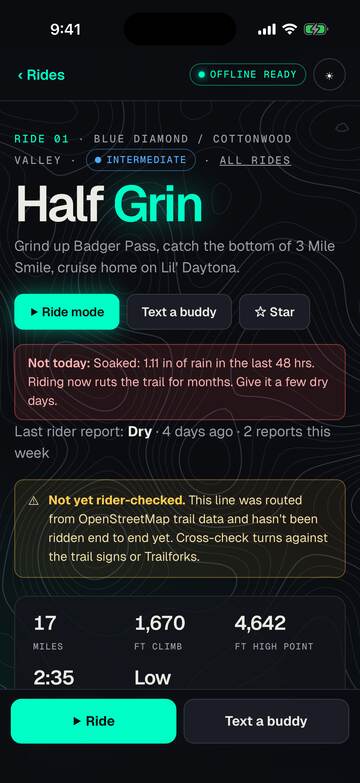
Check conditions
See if the trail is good to ride before you drive.
- Open a ride.
- Read the colored line under the buttons: Good to ride today, Heads up or Not today.
- Scroll to Right now at the trailhead: temperature, high, wind, rain in the last 48 hours, and sunset.
- Check Start by: the latest start that gets you back before dark.
- Last rider report shows how the last riders found it: Dry, Rutted, Muddy or Closed.
Tip: Weather needs signal. Check it at home before you leave.
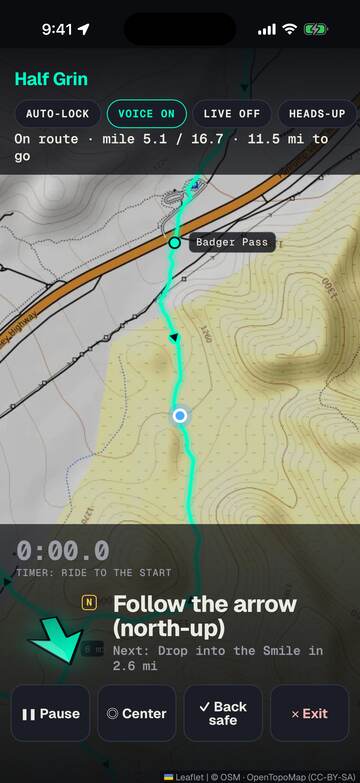
Ride mode with voice turns
Turn-by-turn directions, out loud, on the trail.
- At the trailhead, open the ride and tap Ride mode. Allow location if asked.
- The map goes full screen. The big arrow points where to go.
- About 400 feet before each turn, a voice says which way. At the junction you hear "Turn left now."
- Wander off the line and you hear "Off route." You hear "Back on route" when you return.
- The lap timer starts when you roll out of the start. Pause stops the ride clock and the recording for a break.
- Tap Exit when you are done, then tap how the trail was.
Tip: In the app, lock the phone and put it away. Calls keep coming and your music dips under the voice. On the website, keep the page open.
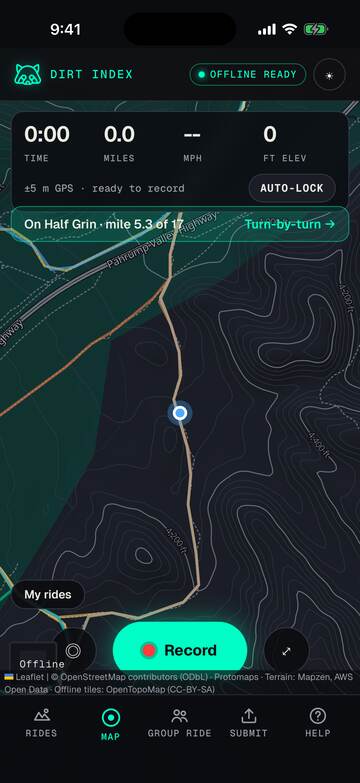
Record a ride
Log any ride, ours or your own.
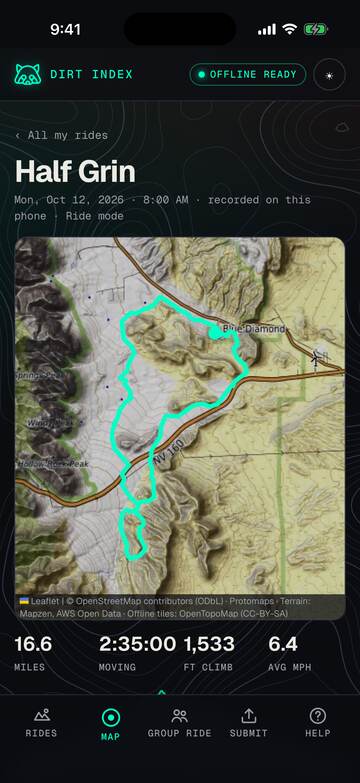
- Open the Map tab. On the website, open My rides, then "back to the map".
- Wait for your blue dot.
- Tap Record and ride.
- Tap the square to finish.
- Name the ride. Then Save image, Make video or GPX.
- Tap Done. The ride is saved in My rides.
Tip: Riding one of our rides? The map says which one. Tap Turn-by-turn to open that ride, then tap Ride mode.
Share a ride card and flyover
Turn a ride into a picture or a short video.
- Finish a ride, or open one in My rides.
- Tap Save image for a picture of your route with your miles, time and climb.
- Tap Make video (in My rides, Save video) for a short flyover of your route.
- Wait a few seconds while the phone makes it.
- Pick where it goes: Photos, Messages, Files or any app.
Tip: The video falls back to a flat map if the phone cannot draw 3D.
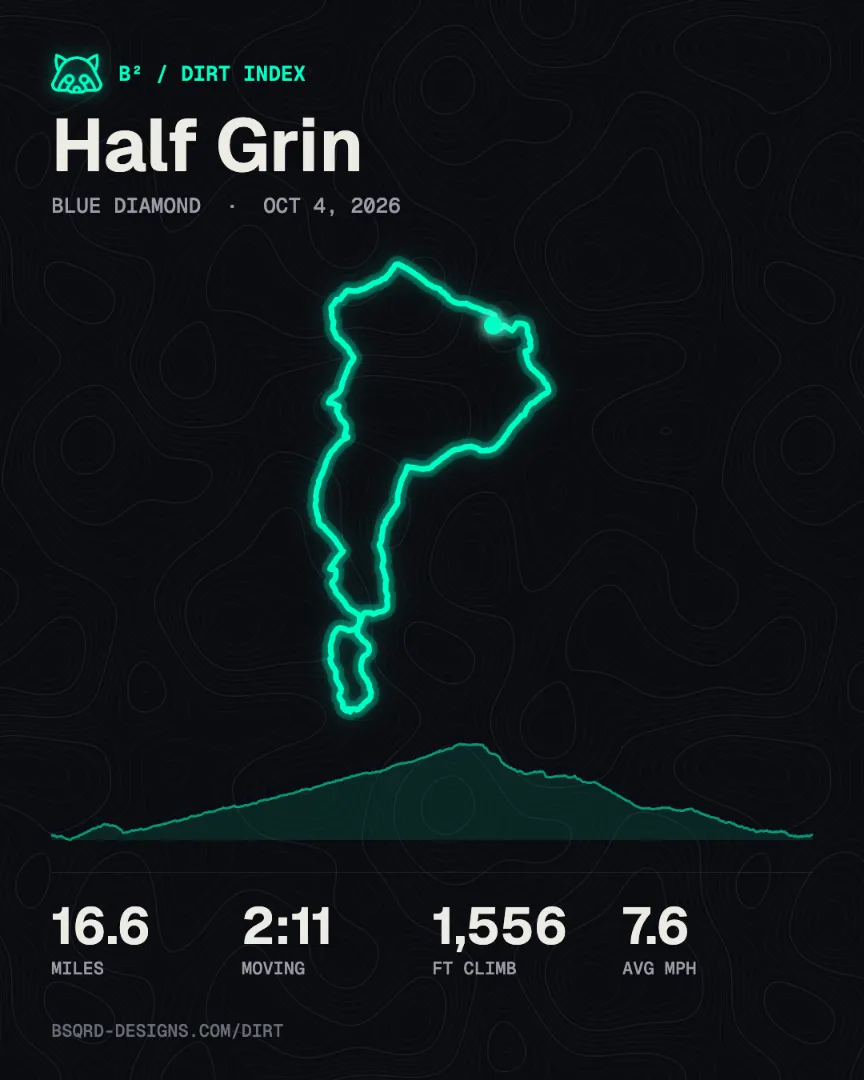
See an example finished ride
Example Ride photos
Snap a photo mid-ride and it lands on the ride's map.
- Start Ride mode, or Record on the Map tab.
- Tap the camera button. Take the photo, then tap Use Photo. You are back on the ride.
- Each photo keeps where and when you took it, and shows as a pin on the ride's map.
- In My rides, open the ride to see its photos and share one. The share image can show the best one, or a strip of three.
- On Apple Watch, Mark spot drops a pin instead.
Tip: Photos stay on this phone. A shared photo leaves its location out unless you turn that on in Settings.
My rides
Every ride you finished, kept on this phone.
- Open My rides from the menu, or the My rides link on the map.
- Rides are newest first, with miles, climb and time.
- Tap one to see the map, the profile and the numbers.
- Tap Save image, Save video, Save GPX or Share.
- Rename gives it a name. Delete takes two taps.
Tip: Up to 200 rides are kept. Nothing is uploaded unless you share it.
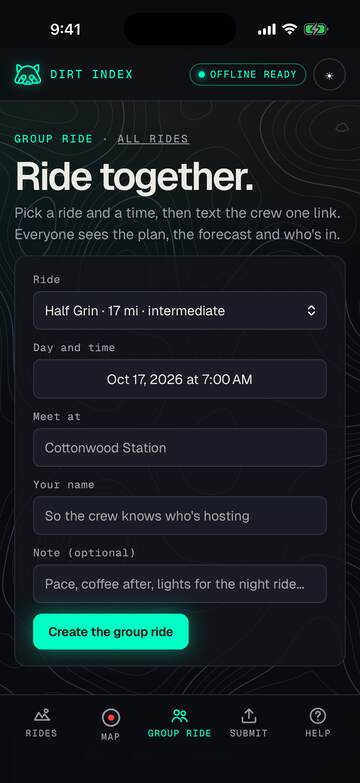
Group ride
Plan a ride and send one link to the crew.
- On a ride page, tap Plan a group ride.
- Pick the ride, the day and time, and where to meet.
- Add your name and a note if you like.
- Tap Create the group ride, then Text the crew.
- Friends open the link and tap I'm in or Can't make it. Add to calendar saves the date.
Tip: Riding alone? Text a buddy on the ride page sends where you parked and when to worry.
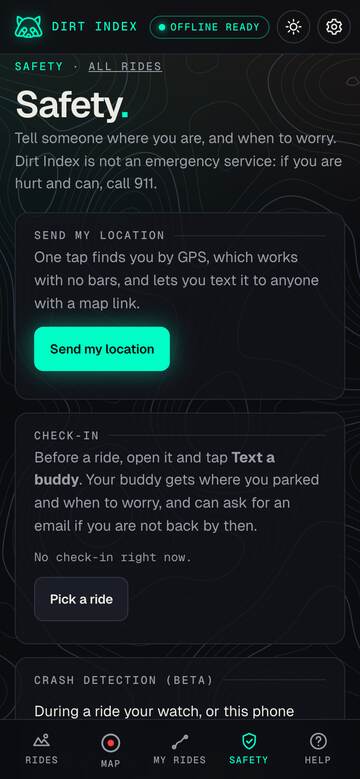
Send my location and check-ins
Let someone know where you are, and when to worry.
- Open Safety from the menu.
- Tap Send my location. GPS finds you even with no bars.
- Pick who gets it in Messages or any app. It includes a map link.
- Before a ride, open it and tap Text a buddy. Your buddy gets where you parked and when to worry.
- Back on Safety, Change time or Back safe moves the alert or ends the check-in.
Tip: No signal? The text waits in Messages and goes out when you get bars.
Offline maps and ride packs
Ride with zero bars.
- In the app, every ride's map, turns and voice are already on your phone. Nothing to save.
- Want full topo away from the rides? Open Maps and pick a ride area or a state.
- Big downloads ask first, so you can wait for wifi.
- On the website, open the ride on wifi and wait for the green offline ready badge.
- On the Apple Watch, Packs keeps your rides up to date over Wi-Fi.
Tip: Test it at home: turn on airplane mode, open the ride, and check the map shows.
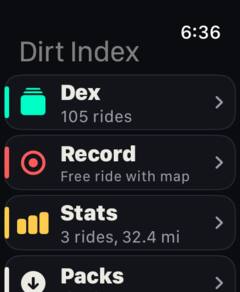
The Apple Watch
The next turn on your wrist, with the phone in your pack.
- Install Dirt Index on your watch from the Watch app on your iPhone.
- On the watch, open Dex and turn the Digital Crown to pick a ride.
- Tap Start ride. If your phone is in reach, it opens Ride mode too.
- Your wrist taps before each turn: one tap when it is coming up, three taps for turn now.
- Turn the Crown for the map, the compass and your numbers. Pause is on the Controls page.
- Left the phone in the truck? The watch calls the turns and records the ride on its own.
Tip: Lost? Take me back on the Controls page leads you back along your own track.
Crash detection (beta)
If you crash and do not answer, an alert goes out with where you are.
- Open the Safety tab and find the Crash detection (beta) card.
- Turn it on. Add your first name and up to three contact emails, then tap Save contacts.
- Under each contact, the card shows where it stands: confirmed, waiting to confirm, or not emailed yet during the beta. Only confirmed contacts get alerts.
- Start a ride. Your watch, or this phone if no watch is on the ride, watches for a hard fall.
- After a fall you get 30 seconds to tap I’m OK. If you do not, an alert goes out with your location, the trail and where you parked. The card says who gets it during the beta.
- Tap I’m OK later to send an all clear.
Tip: Dirt Index does not call 911. It can miss a crash and can go off when nothing is wrong. If you are hurt and can, call 911.
Pro features
Stats, personal bests and Bike health. Open to TestFlight testers.
- Open My rides (or Settings, the gear at the top) and tap Stats or Bike health.
- Stats: totals for the week, month, season and all time, your streaks, and your bests on each trail.
- Bike health: add your bike. Each part gets a default service interval you can change.
- Rides add wear to your active bike. Parts turn Due soon, then Overdue.
- After a service, tap Serviced today. Find a shop lists local bike shops.
Tip: Ride mode tells you when you set a new best on a trail.
FAQ
Does it drain my battery?
Less than you might think. GPS only wakes when you move. In the app the screen can lock while turn calls keep coming, and the screen is the biggest drain.
If the battery drops fast, the app switches to battery saver on its own. Ride mode turns itself off after 40 minutes without moving. At the end you see how much battery the ride used.
Start with a full charge and carry a small battery pack on long rides.
Does it work with no signal?
Yes. Your phone finds you from GPS satellites, with no cell or data. In the app, every ride's map, turns and voice are already on the phone.
On the website, open the ride on wifi first and wait for the green offline ready badge.
Only a few things need signal: the weather, a live follow link, and sending a report. Reports wait on the phone and go out when you have bars.
How accurate is it?
Phone GPS is good to about 15 to 50 feet. That is enough to know which trail you are on, not which side of it.
Routes come from OpenStreetMap trail data. A ride says "Not yet rider-checked" until a rider has confirmed it on the ground. If the trail signs disagree with the app, believe the signs.
What do you keep about me?
No account, no cookies, no ads, no trackers. Your location and your rides stay on your phone unless you choose to send them: a live follow link, a shared route, or a problem report.
The full list is under Privacy.
Why does it ask for location "Always"?
While Using the App is enough to see the map and hear turns with the screen on.
Always lets Ride mode keep calling turns and timing your run with the screen locked and the phone in your pack. Your location still stays on your phone.
In the crash detection beta, Always also lets safety turn on by itself when you start riding at a trailhead.
Can I use the watch without my phone?
Yes. Start a ride from Dex with the phone left behind, and the watch calls the turns with wrist taps, shows its own map and records the ride.
When the phone is back in reach, the ride goes to My rides. The watch app works even without the iPhone app.
How do I report a trail problem?
On the ride page, scroll to Report a problem. Pick what it is, where, and add a photo if you have one. It is sent later if you have no signal.
After a ride, one tap on Dry, Rutted, Muddy or Closed tells the next rider how the trail was.
What does it cost?
Nothing. Dirt Index is free, with no ads and no account.
Pro features (Stats and Bike health) are open to TestFlight testers. Nothing free will ever move behind Pro.
Is there an Android app?
Not yet. The full guide works in any phone browser at bsqrd-designs.com/dirt, and it can save rides for offline use.
Troubleshooting
No blue dot, or "No GPS yet"
- Go outside and stand still in the open for 30 to 60 seconds. Canyons slow the first fix.
- Open Settings, then Dirt Index, then Location. Pick While Using the App or Always.
- Turn on Precise Location on the same screen.
- On the website, allow location for your browser too (Settings, Privacy & Security, Location Services).
Voice not playing
- In Ride mode, check the chip at the top says Voice on. Tap it if it says off.
- Turn up the volume with the side buttons while Ride mode is open.
- Headphones or a speaker connected? The voice plays there.
- Calls start once you are on the line. Before the start, the timer says "ride to the start".
- On the website, keep the page open and the screen on.
Watch not syncing
- Open Dirt Index on both the phone and the watch.
- Keep the phone close, with Bluetooth on.
- When you start a ride on the watch, its screen says what the phone answered. Tap Try again if it offers it.
- A ride the watch recorded alone goes to My rides once the phone is back in reach. Open My rides to bring it in.
- Packs need Wi-Fi on the watch, or Get from iPhone with the phone close.
Map blank or gray offline
- Gray squares mean that part of the map is not saved. Zoom back toward the ride's line.
- For more map, download the area in Maps while you have wifi.
- On the website, open the ride on wifi and wait for offline ready. If it says partial, reload on wifi.
- Your blue dot and the turn calls still work without the map.
Something wrong?
A turn call that came late, GPS that froze, a battery that drained fast: tell us, and send your ride log along if you kept one.
The log stays on your phone. Nothing is sent unless you send a report.
About Dirt Index
Dirt Index is free mountain bike rides across the Southwest and the Sierra: Las Vegas, Utah, Sedona, Tahoe and Mammoth. Built by B² for riders who want to find a good loop, load it on a phone and ride it with no signal. Every ride has a mapped line, an elevation profile, a turn-by-turn cue sheet, spoken turn calls and live trailhead weather. No accounts, no ads, no paywall.
Ride it
Ride mode puts the route full screen with a heads-up arrow, calls each turn out loud, warns you when you wander off line and times your laps against your best.
Ride it offline
Save any ride before you leave the house. The map, cue sheet and voice all work at the trailhead with zero bars.
Ride it together
Plan a group ride and send one link to RSVP, text a buddy where you parked and when to worry, or share a live follow link while you ride.
Why we built it
The good loops around Las Vegas mostly live in people's heads, old forum threads and apps that want a subscription before they show you a map. We wanted the opposite: pick a ride, see exactly where it goes and how hard it is, save it to your phone, and have it talk you through the turns when there's no signal. So we built it, made it free, and kept it free of accounts and ads.
What's included
- 105 rides in 21 areas across the Southwest and the Sierra, from Las Vegas and Utah to Sedona, Tahoe and Mammoth, each with a mapped line, elevation profile and cue sheet.
- Spoken turn calls and an off-line warning in ride mode.
- Offline maps you choose, from one ride area to a state or region, in Maps. Plus live trailhead weather and a trail conditions check.
- Ride recording, group ride invites and a live follow link for a buddy.
- The app for iPhone, coming soon. See the app
How the rides are made
- Routed from open map data. Lines follow OpenStreetMap trails, checked against wilderness boundaries (no bikes allowed there) and land-manager rules from BLM, the Forest Service, NPS and Clark County.
- Cross-checked against Trailforks for trail direction, difficulty and reported issues. Nothing from Trailforks is copied onto these pages.
- Rider-checked over time. A ride shows "not yet ridden" until a rider confirms the line on the ground. Trust trail signs over any map.
- Trails change. Construction, closures and storms move faster than any map. Obey fences, signs and closures, always.
Credits
- Trail data: © OpenStreetMap contributors, ODbL.
- Map tiles: © OpenTopoMap, CC-BY-SA.
- Maps: Base map data © OpenStreetMap contributors, available under the Open Database License, built with Protomaps. Terrain: Mapzen terrain tiles on AWS Open Data (USGS 3DEP, SRTM and others). Offline trail tiles © OpenTopoMap (CC-BY-SA).
- Elevation: SRTM via OpenTopoData. Weather: Open-Meteo.
- Photos: each one is credited on its ride page: riders who shared their own shots, plus Creative Commons and public domain photos via Wikimedia Commons and Openverse.
- Found a mistake? Use "Report a trail problem" on any ride.
Privacy and the fine print
What it keeps about you (privacy)
- No accounts, no cookies, no ads, no trackers.
- Visit and ride counts: just which page was opened, and how many times Ride mode was started or finished on each ride, recordings finished and rides started from the watch, per day. No IP address, identifier or location is stored.
- Your location stays on your phone unless you choose to send it: live sharing, sharing a route, or sending a ride log with a problem report. On the phone it's used for the blue dot, turn calls, the run timer and recordings.
- In the iPhone and Android app, Ride mode and Record keep using location with the screen off so turn calls and recording keep working; your phone shows that it's in use, and it stops when you leave Ride mode or finish. Your location stays on your phone unless you choose to send it: live sharing, sharing a route, or sending a ride log with a problem report. The app also reads your battery level on the phone to save power, and uses on-phone notifications for reminders. Nothing about your battery or notifications is sent to us.
- On Apple Watch, the app can run your ride as a cycling workout. It reads your heart rate and active energy to show them on the watch, and saves the ride to Apple Health if you leave Save to Health on. That Health data stays on your watch and in Apple Health; it is never sent to us or anyone else, and never used for ads. The watch uses your location for its map and so its compass can point to true north, and during a workout it records your ride's GPS track. That track is saved to the workout's route in your Apple Health (with Save to Health on) and sent to your own iPhone, where it is kept with your recorded rides. It is never sent to us or anyone else.
- Ride logs (GPS points and what the app said on a ride) can be kept on your phone for troubleshooting; test builds keep one by default, and the switch below turns it on or off. A log is sent only when you tap Send on a problem report with "Include my ride log" checked, and the start and end of the ride are left out. We keep a sent log 90 days; ask us to delete it sooner and we will.
- Safety check-in: if you text a buddy, the server keeps your planned back time. Anyone you send the link to can ask for an email if you are late. Their email is deleted when you tap Back safe, or after 24 hours.
- After Back safe, a note that you are back (no location) stays for up to 24 hours.
- Trail reports you choose to send: the ride, what you saw, and optionally your GPS spot and an email or phone if you want a reply. Only the site owner sees them, and they're used only to keep the rides accurate.
- Rider photos are shrunk on your phone before upload, which also strips the hidden location and camera data. They're published only after review, with the credit you choose. Want one taken down? Send a report on that ride.
- Live sharing only happens if you send a buddy your follow link: while Ride mode is on, your phone posts its position about every 30 seconds to a private, unguessable link. Tapping "Back safe" deletes it right away; otherwise it expires after 24 hours.
- Crash detection beta (TestFlight test builds only, never the App Store app): if you leave it on, then during a ride your phone sends a location check-in about every 5 minutes to a private, unguessable live page, and a crash alert sends your location, trail, mile, car spot and battery level. The crash contacts you add (up to three emails) and your first name are kept with a random id made on your phone. Ride data is deleted 24 hours after the ride ends, alerts after 3 days, and Remove my crash data deletes the rest. Motion data never leaves your watch or phone. During the beta, alerts only email Ryan.
- One-tap check-ins ("dry", "muddy" and so on) are stored with the ride and the time only, nothing about you.
- Ride recordings stay on your phone. The image, video and GPX you save go wherever you put them. Nothing is uploaded unless you choose "Share this route with Dirt Index": then the route, your notes and the optional name or email you add come to us, only to review the trail and maybe add it to the site.
- Submitted ride files (Submit a ride): your location is uploaded only when you choose to send a file, and your phone first cuts the first and last 200 m and drops heart rate, power, cadence and device details. We keep the route, your notes and the optional credit name and email only to review the ride and maybe add it to the site with your credit.
- Ride photos you take with the camera button while riding stay on your phone, in the app's own storage (not your camera roll unless you turn on "Also save new ride photos to Photos" in My rides), with where and when you took them. Nothing is uploaded. A photo you share leaves its location out unless you turn on "Keep the location in photos I share". A GPX you save can list the photo spots as waypoints, never the photos. Deleting a ride deletes its photos. Spots you mark on Apple Watch are a time and a place, sent only to your iPhone.
- Run times from the Ride mode timer stay on your phone too. There's no leaderboard and nothing is sent anywhere.
- Your phone stores saved maps, stars, Sun mode and similar preferences locally. Clearing site data removes them.
- Weather comes straight from Open-Meteo to your phone.
- Want something deleted (a report, photo or route you sent)? Use the contact form below and we'll remove it.
Ride at your own risk
Mountain biking in the desert and mountains is dangerous. Heat, falls, wildlife, flash floods, lost signal and getting lost are real. These pages are free route beta, not a guarantee that a trail is open, legal, safe or accurately mapped on the day you ride. You're responsible for your own riding, gear, water, route choices and for following land-manager rules. Carry more water than you think, tell someone your route, and turn around when it's smart.
Nothing found. Try another word, or ask us.
Dirt Index · website · updated October 15, 2026 · made in Las Vegas by B²